
Volume Booster – Audio Center
AinulMardhiyahTools
4.690.00 Reviews
- Version
- 1.0
- Installs
- 50.00K
- Age Rating
- Everyone
Screenshots
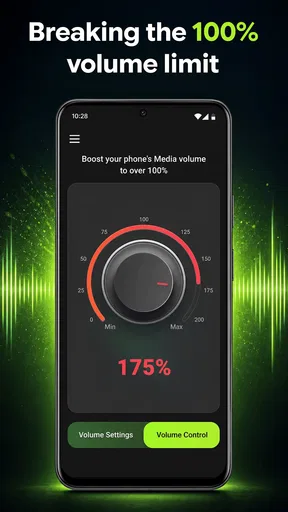
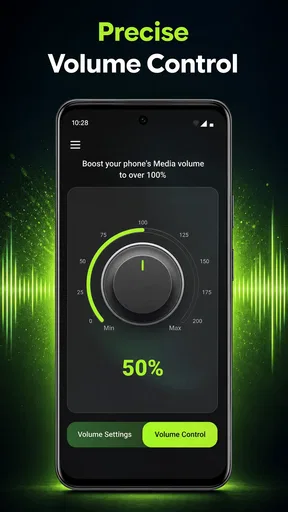
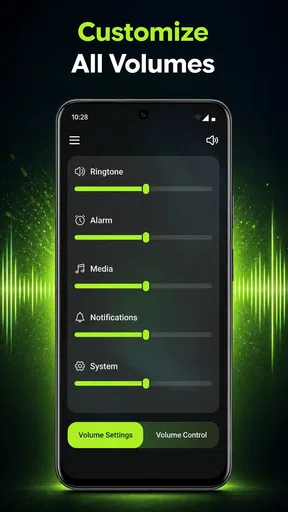
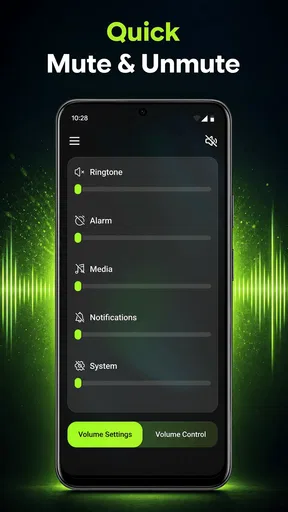
Our Review of Volume Booster – Audio Center
 Analysis by Appyee
I approached Volume Booster – Audio Center as a practical sound utility rather than a replacement for the phone’s built-in audio controls. That distinction matters. The app is designed to make media volume easier to manage and to help users get more from a phone speaker or connected audio device, but its value depends heavily on the hardware, the type of content being played, and how carefully the extra volume is used.
After spending time with it, my view is straightforward: this is a useful free tool for people who regularly find their phone’s media output a little too quiet, especially in casual situations. It is less convincing for anyone expecting a full audio workstation, studio-grade equalizer, or a guaranteed way to make every speaker dramatically louder. The best reason to try it is convenience, not magic.
How Volume Booster – Audio Center fits into everyday listening
The app comes from AinulMardhiyah and sits in the tools category. Its current release is version 1.0, and it works on devices running Android 8.0 or newer. The presentation is easy to understand: open the utility, adjust the sound level, and return to whatever media you want to hear. That direct approach makes more sense here than a crowded interface filled with controls most people would never touch.
In my experience, a volume utility is most useful when the phone is being used in an imperfect environment. A podcast may be difficult to hear while preparing breakfast, a spoken video may sound weak on a small handset, or a navigation instruction may be lost under ordinary background noise. In those moments, having a dedicated place to manage media volume can be more convenient than repeatedly opening the system panel and searching for the correct slider.
The app is free and carries an Everyone content rating, which makes it approachable for a broad range of users. Its audience is not limited to audio enthusiasts. Someone who simply wants clearer playback from a modest phone speaker can understand the purpose immediately, without learning a complicated mixing workflow.
There is also a useful psychological benefit to a separate volume tool: it encourages you to think about media volume independently from ringtone and notification sounds. That separation is important in daily use. I often want a video louder while keeping alerts at a normal level, and a focused audio utility is more practical than changing every sound setting on the phone at once.
What worked best during normal use
The strongest part of the experience is its narrow focus. Rather than asking the user to configure a long chain of audio effects, it centers attention on the thing most people came to change: loudness. That makes it suitable for quick adjustments before listening to a clip, watching a tutorial, or handing the phone to somebody who is struggling to hear.
A realistic example is an evening video call or a short instructional video played in a kitchen. The phone may be placed several feet away, and the built-in speaker may not project speech as clearly as expected. I would use the app to raise the media output, then lower it again after the session instead of leaving the phone permanently pushed to its limit. That small habit is more sensible than treating maximum volume as the default.
Another practical use is checking audio before connecting headphones or a Bluetooth speaker. I prefer starting at a moderate level, playing a familiar piece of speech, and increasing the output gradually. This reduces the chance of an unpleasant jump when a different device responds more strongly than the phone speaker. A volume booster is most helpful when it gives you control, not when it tempts you to move instantly to the highest setting.
The real strength is quick access to louder media without turning sound management into a project. That may sound modest, but it is exactly why a small utility can earn a place on a phone. Many users do not need detailed equalization; they need a straightforward adjustment when the default output feels insufficient.
Where it compares well with the usual alternatives
The obvious alternative is the phone’s own volume panel. Built-in controls are dependable and usually safer because they are integrated with the operating system. If you only change volume occasionally, the system slider may be all you need. Installing a separate tool is difficult to justify when the phone already reaches a comfortable listening level.
Volume Booster – Audio Center becomes more appealing when the standard controls feel inconvenient or when the user wants a dedicated media-focused workflow. A separate utility can be quicker to reach and easier to understand than a settings screen that mixes calls, alarms, notifications, and media. For a person who adjusts listening volume several times a day, that difference can matter more than a long list of advanced audio options.
Another alternative is a full equalizer or audio-enhancement application. Those products can be better for listeners who want to shape bass, treble, balance, or a particular headphone profile. They can also introduce more complexity and may behave differently across apps and devices. I would choose a full equalizer for careful sound tuning, but I would choose this app when the main problem is simply that media playback needs a little more presence.
There is a trade-off here. Simplicity makes the app approachable, but it also means it should not be judged as a complete replacement for dedicated audio software. Its identity is closer to a focused control panel than a production tool. That is a sensible position, provided the user has realistic expectations.
The limitation that matters most
Extra software cannot completely overcome the physical limits of a phone speaker. If a small speaker is already close to its maximum clean output, increasing the digital level may make the sound harsher rather than genuinely better. Speech can become tiring, music can lose balance, and distortion may appear depending on the device and recording. I would treat the booster as a way to gain useful headroom, not as permission to force every track beyond what the hardware can reproduce comfortably.
This is especially important with headphones and earbuds. A setting that seems reasonable through a quiet phone speaker may feel far too strong through in-ear audio. I recommend testing with a familiar spoken recording instead of starting with a loud song, because speech makes sudden changes easier to notice. If the sound becomes sharp, strained, or uncomfortable, reducing the level is the correct response.
There is also a practical friction in any app that sits alongside system controls: users must remember which adjustment they changed. If the phone later sounds unusually loud, the first places to check are both the Android volume panel and the booster itself. That extra step is not a serious flaw, but it can confuse someone who expects one slider to explain everything.
For that reason, I would not install it on a phone that already has strong speakers and comfortable output. I would also skip it if the real problem is poor audio quality, damaged hardware, an obstructed speaker grille, or a recording that was made too quietly. More volume cannot repair missing detail or a bad source file.
Small habits that make the app more useful
My first tip is to create a repeatable listening check. Use a short spoken clip that you know well, raise the level until every word is clear, and stop before the voice begins to sound brittle. This gives you a better reference than judging volume from music alone, where changes in bass and treble can make loudness feel misleading.
Second, adjust for the situation rather than leaving the level high all day. A setting that works beside a running tap may be excessive in a quiet bedroom. Returning to a moderate level after noisy listening protects comfort and makes accidental blasts less likely the next time headphones are connected.
Third, test the app separately with the phone speaker, wired headphones if available, and a wireless speaker. These outputs do not respond identically. A level that improves the built-in speaker may be unnecessary on an external device, and switching between them without checking can create an unpleasant surprise.
Finally, use it as a troubleshooting step rather than the only solution. If dialogue remains difficult to understand, try the same video with another recording, clean the speaker opening carefully, and compare a different output device. This helps reveal whether the issue is low volume or poor source quality. The app is most valuable when it is part of that sensible process.
Who should install it, and who should pass
I would recommend it to people who frequently watch videos or listen to spoken content on Android phones whose normal media output feels slightly weak. It also suits users who prefer a dedicated tool over repeatedly navigating the system interface. The free price removes the need to make a large commitment, and the accessible design makes it reasonable for casual users rather than only technical listeners.
It may be particularly handy for older family members who struggle with quiet speech in videos, provided someone helps them establish a comfortable level and explains that maximum volume is not always the clearest setting. The same applies to anyone who keeps a phone on a desk while following tutorials, recipes, or recorded lessons. In those situations, a small increase can make the difference between constantly leaning toward the handset and listening normally.
I would not recommend it as the first choice for musicians, podcasters, or anyone seeking detailed tonal control. Those users are better served by an equalizer or by improving the playback hardware. I would also be cautious about using it for children without supervision, not because the app is difficult, but because louder output should always be handled thoughtfully regardless of the Everyone rating.
The app has built a respectable audience, with an average rating of 4.6 from around 1.2 thousand ratings and over 50 thousand installs. Those figures suggest that the straightforward idea is resonating with many Android users, while the smaller version number and early release position also make me view it as a focused utility rather than a mature, feature-heavy audio platform.
My final assessment
Volume Booster – Audio Center succeeds when the request is simple: make media easier to hear and keep sound management uncomplicated. I like that it addresses a common annoyance without demanding technical knowledge, and I appreciate that its usefulness can be felt in ordinary situations rather than only in carefully arranged tests.
At the same time, I would keep expectations grounded. The app cannot change the quality of a weak recording, turn a tiny speaker into a powerful one, or replace a proper equalizer. Its best results come from moderate adjustments, careful listening, and choosing the right output device for the situation.
My recommendation is therefore specific. If your phone regularly feels just a little too quiet during videos, podcasts, or other media, this free tool is worth trying. If your current system controls already work well, or if you want detailed sound shaping, stay with the built-in controls or choose a more specialized audio app. For everyday volume problems, it is a practical helper; for serious audio customization, it is the wrong category of tool.
That balance is what makes Volume Booster – Audio Center easy to recommend to the right person. It does not need to promise a dramatic transformation. When used carefully, its value is in making a small but recurring listening problem easier to manage.
Verdict
Strengths of Volume Booster – Audio Center
- Quickly increases sound output for music, videos, and games.
- Simple controls make volume adjustments easy for most users.
- Useful for improving quiet audio on speakers or headphones.
- Works without requiring advanced audio knowledge.
- Small, focused tool with a straightforward interface.
Limitations of Volume Booster – Audio Center
- Excessive amplification may cause distortion or unpleasant sound.
- High volume levels can damage hearing or connected speakers.
- Results may vary depending on the device and Android version.
- Some features may be limited or supported by advertising.
- It may not improve poorly recorded or inherently low-quality audio.
Other Releases by AinulMardhiyah
View All
All Document - File Viewer
Tools3.2
Similar Picks in This Category
View All
Google LLC4.0

Gboard - the Google Keyboard
Google LLC4.5

Google Play services
Google LLC4.3

Google Play Store
Google LLC4.9

Files by Google
Google LLC4.5

SHAREit: Transfer, Share Files
Smart Media4U Technology Pte.Ltd.4.3
Frequently Asked Questions
What is Volume Booster – Audio Center and what does it do?
Volume Booster – Audio Center is designed to give you more control over the sound produced by your mobile device. It can help increase the perceived loudness of music, videos, games, notifications, and other media beyond the standard volume controls. The app typically brings audio adjustments together in one place, making it easier to manage different volume levels without repeatedly opening the system settings.
How do I use Volume Booster – Audio Center safely?
After installing the app, start with a low boost level and gradually increase it while playing familiar audio. Avoid immediately selecting the maximum setting, because amplified sound can become distorted or uncomfortably loud. For safer listening, keep your device volume moderate, take regular breaks, and be especially careful when using headphones. The best results usually come from small adjustments rather than extreme amplification.
Can Volume Booster – Audio Center make every sound louder?
The app may improve the loudness of supported media, but its performance depends on your device, Android version, speaker quality, headphones, and the application playing the audio. Some system sounds, phone calls, protected content, or apps with their own audio controls may not respond fully. It also cannot overcome physical speaker limitations, so increasing the boost too far may produce distortion instead of clearer or genuinely better sound.
Does Volume Booster – Audio Center work with headphones, Bluetooth speakers, and other devices?
Compatibility can vary depending on how your phone handles audio output. In many cases, the app can affect sound sent to wired headphones, Bluetooth earbuds, or external speakers, but the result may differ between devices and connection types. Bluetooth hardware may also have its own volume limit or processing. If the boost does not seem to work, reconnect the accessory and check both the app and system volume controls.
Is Volume Booster – Audio Center free, and are there any limitations?
The availability of free features, advertising, in-app purchases, and premium controls depends on the version offered in your app store. Some editions may provide basic amplification at no cost while reserving advanced controls or an ad-free experience for paid users. Before downloading, review the store listing, permissions, subscription terms, and recent user feedback so you understand exactly what is included and whether recurring charges apply.
